
Article · Brandon Warrell
What DPI should you scan old photos at before restoration?
Scan ordinary prints at 600 ppi if you plan to restore or enlarge them. 300 ppi is the usual baseline for a same-size copy. If a small print needs to become a much bigger one, work out the number with a simple formula, which can take you past 600. Save the scan as a TIFF, scan in color, and turn off the scanner's automatic fixes.
What DPI should you scan old photos at?
DPI and PPI mean the same thing here.
| What you want | Scan at |
|---|---|
| A copy at the original size (4 × 6 or 5 × 7 in) | 300 ppi |
| Restoration, or an enlargement to 8 × 10 in or a bit larger | 600 ppi |
| A small original headed for a big print | Use the formula below |
The Library of Congress scanning guidance puts the baseline at 300 ppi for 4 × 6 and 5 × 7 prints, and 400 or 600 ppi if you want to enlarge them to 8 × 10 or larger.
600 is a sound default because restoration needs room: cracks and dust spots are easier to fix with more pixels.
More isn't always better. A second version of the Library of Congress handout notes that anything above 600 ppi may be unnecessary for ordinary prints. Go above 600 only when the formula below says a small original needs it to become a much larger print.
How do you work out the DPI for a larger reprint?
Use this formula on the long side of the photo:
scan ppi = (final print size × 300) ÷ original size
It's the same math as in my poster sizes guide: inches × ppi = pixels. The proposed scanning standards for the Indiana Digital Library use the same approach: divide the pixels you need (they use 3,000) by the inches of the photo's long side.
| Original | Final print | Scan at |
|---|---|---|
| 5 × 7 in | 10 × 14 in | 600 ppi |
| 4 × 6 in | 8 × 12 in | 600 ppi |
| 4 × 6 in | 12 × 18 in | 900 ppi |
| 5 × 7 in | 15 × 21 in | 900 ppi |
If the print and the original have different proportions, run the formula on both sides and use the larger answer.
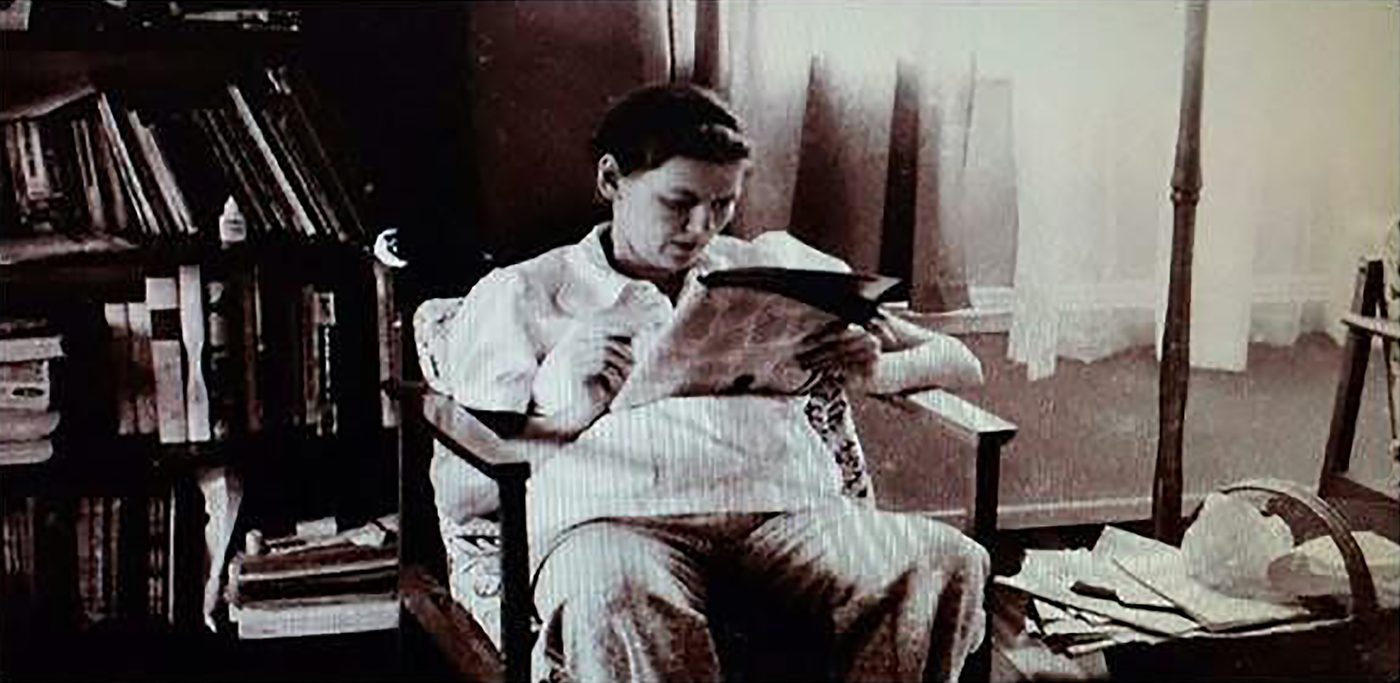
The end use matters. For a Photoshop course at SCF (State College of Florida) in Spring 2025, I colorized a sepia photo of my grandmother, taken in Papua New Guinea, reading in a chair, and set her into a free-license photo of a library; the finished piece was printed at 13 × 19 in. At 300 ppi, a print that size needs about 3,900 × 5,700 pixels, which is why the final print size is the first thing to settle before you scan.
Should you save scans as TIFF or JPEG?
Save a TIFF as your master, then make JPEG copies for sharing and editing.
The proposed Indiana Digital Library standards call for uncompressed TIFF as the master format. The Museum of Applied Arts and Sciences (Powerhouse) in Sydney gives the same advice: save a TIFF master, then make a compressed JPEG copy. It also explains why. A JPEG loses a little more information every time you save it, and a low-resolution image can never be turned into a high-resolution one.
So scan once, at the size you'll need, and edit a copy.
Should you scan black-and-white and sepia photos in color?
Yes, for sepia and faded prints, and for anything headed for restoration. Archives differ on plain black-and-white prints.
The Library of Congress scanning handout calls grayscale best for black-and-white photographs. The Indiana standards say black-and-white photos benefit from color scanning when they're sepia-toned or badly faded. The Powerhouse sheet says to always scan in color, because gray tones are picked up better that way.
For restoration or colorization, scan in color. Grayscale throws away the warm tones a restorer works from.
Which scanner settings should you turn off?
Turn off the automatic fixes and do the repair in editing, where it can be undone.
- Auto exposure and auto color. The New England Historic Genealogical Society advises turning off auto exposure and any automated color correction or image repair.
- Dust and scratch removal. This counts as automated image repair.
- Descreen. It's meant for printed halftone images, not photographic prints. Epson's scanner help describes it as a fix for the ripple pattern in scanned magazines and newspapers.
Before you start, clean the scanner glass. The Library of Congress says to make sure it's free of dirt, smudges and particles that could show up in the scan.
How do you handle fragile prints and old albums?
Gently. The Powerhouse sheet warns that older photos can be bowed, and the emulsion can crack if you put weight on top too quickly. The National Archives adds that the whole print should fit on the glass, because the lid can crush and crease paper that hangs over the edge.
Photos stuck to old sticky album pages, often called magnetic albums, need extra care. Don't force them off. The Library of Congress preservation FAQ says:
- The safest do-it-yourself option is to cut around each photo while it's still on the page, as long as there are no photos on the back of that page.
- If the adhesive has completely dried out, try sliding a thin card behind the photo.
- If it won't come free without creasing, tearing or curling, or the album is worth keeping as it is, consult a photograph conservator.
You can also scan the photo while it's still on the page; the New England Historic Genealogical Society lists 600 ppi for photo albums.
Keep the originals afterward; the National Archives notes digital files can easily be lost. Make at least two copies of your scans and store them in different places, as the Library of Congress advises. The National Archives goes a step further: three copies, on two kinds of media, with one copy off-site.
Is a phone scan good enough?
For sharing and quick copies, yes. Apps like Google PhotoScan remove glare and handle cropping, straightening and rotation for you.
For restoration or a bigger print, use a flatbed scanner, which lets you choose the resolution. If you use a camera instead, the New England Historic Genealogical Society suggests a camera with at least a 15-megapixel sensor, with control over ISO, shutter speed and white balance.
What should you send for restoration?
Send the best scan you can make, a TIFF if possible, and tell me the print size you want at the end. That size decides how much detail the file needs.
I offer photo restoration and colorization from $40 per photo. Most projects reach a first finished draft in 2–4 business days once I have your details, and up to 3 rounds of revisions are included. You can see more of my work on the work page.
To get started, see my graphic design services, or read the FAQ for pricing, turnaround and revisions.