
Article · Brandon Warrell
How to turn a photo into vector art in Illustrator
To turn a photo into vector art in Illustrator, you have two routes. You can place the photo and run Image Trace, which converts it to vector shapes automatically. Or you can put the photo on a dimmed, locked template layer and draw over it with the Pen tool and simple shapes. Image Trace is faster. Hand tracing takes longer but gives you cleaner paths and colors you picked on purpose. Either way, finish by cutting the colors down to a small palette and checking the paths.
Should you trace by hand or let Illustrator trace it?
Give Image Trace a fair try first. It works best on simple, high-contrast art such as a clean sketch or a bold graphic. Adobe's own guidance is more cautious about photos. Its Image Trace best practices page says fine details "almost always disappear," gradients turn into multiple flat-color shapes, and precise geometric shapes and straight lines should be traced manually. It also says that auto tracing a photo to make it infinitely scalable doesn't work as intended.
Current Illustrator also has a generative option, Concept to Vector, under Object > Generative > Concept to Vector. Adobe describes it as a way to turn photographs into stylized vector illustrations. A prompt is optional, and a Match Reference Image slider sets how closely the result follows the original. It gives you an interpretation of the photo, not a faithful redraw.
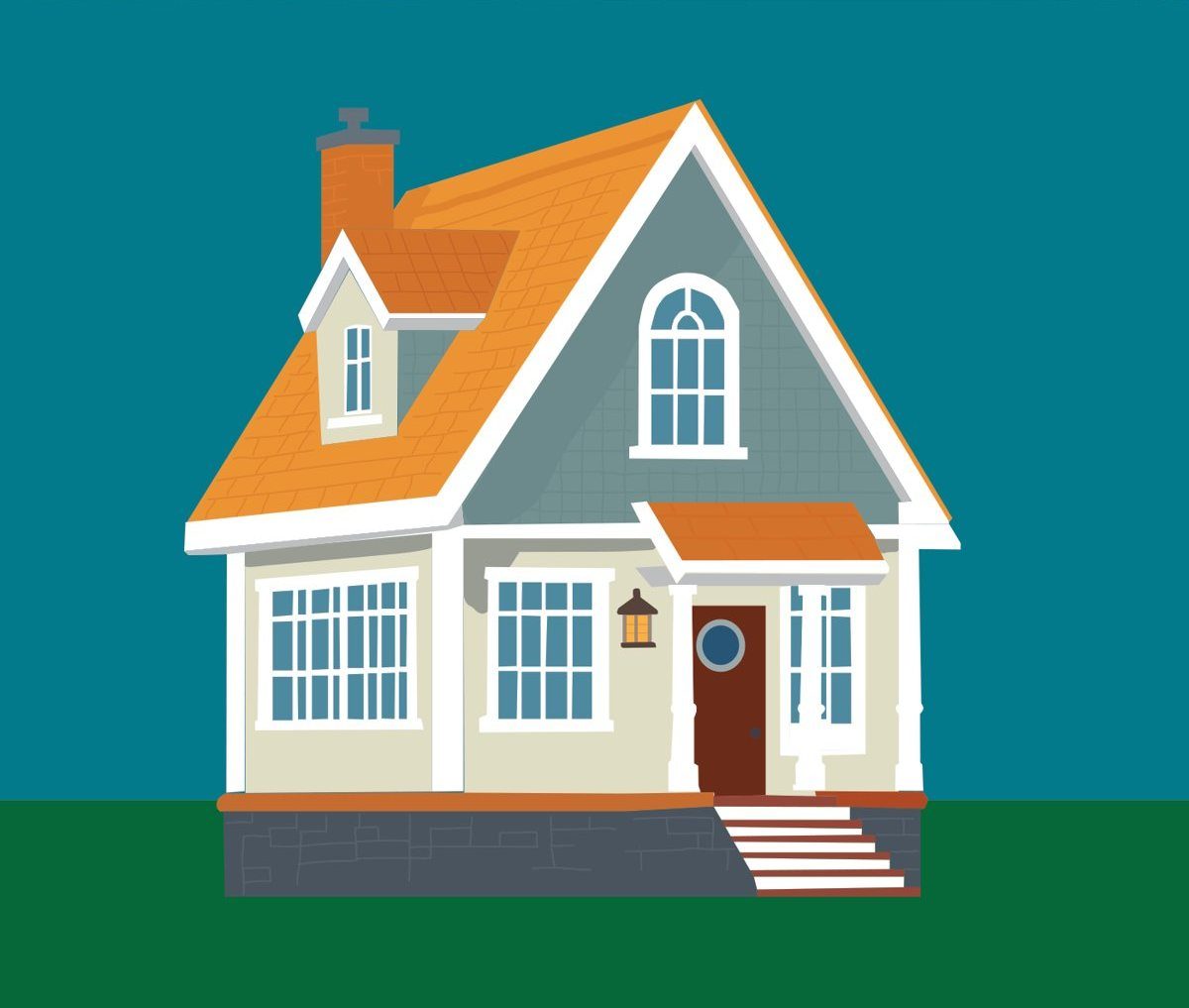
Hand tracing is the better route when the drawing has to look intentional: clean edges, a planned set of colors and paths you can edit later. Illustrator is my main tool (here's how it compares with Photoshop and InDesign). Vector Cottage is a drawing I made in Illustrator from a reference photo for SCF Intro to Computer Graphics, Fall 2024, built from flat shapes and pen-tool paths.
How do you get a cleaner result from Image Trace?
If you trace automatically, Adobe's Image Trace steps are:
- Choose File > Place and select your photo.
- Open Window > Image Trace.
- In the Preset dropdown, choose Enhanced Presets (or Legacy Presets), then pick a preset. Low Color creates simplified photorealistic artwork, and Auto-Color creates a posterized look.
- Adjust Paths, Corners and Noise.
- Click Expand when you're happy, so the result becomes editable vector paths.
Here's what the three main sliders do, according to Adobe's panel options and presets pages:
| Setting | What it controls | Tip |
|---|---|---|
| Paths | How closely the traced shape follows the original pixels | Higher is tighter, lower is looser. The presets article warns that pushing it to the far right makes paths bumpy |
| Corners | How likely a sharp bend becomes a corner point | Higher gives more corners |
| Noise | The size of pixel areas ignored while tracing | Higher gives less noise. Adobe suggests 20–50 for high-res images and 1–10 for low-res |
The Palette menu also matters. Limited uses a small set of colors, which suits a posterized look. The Info readout shows the number of paths, anchors and colors in the result. A photo trace often reports far more of each than a hand drawing would need, and that's where the extra cleanup comes from: odd little shapes, lumpy edges and extra anchor points.
Once you click Expand, you can't change the tracing options anymore, so tune them first. Adobe's presets article makes the same point: it's better to optimize the Image Trace options than to edit the paths afterward. To trim the extra points, select the paths and choose Object > Path > Simplify. Removing anchor points changes the shape slightly, so compare it with the original before moving on.
How do you set up the photo as a template layer?
For hand tracing, start by turning the photo into a guide you can't move by accident.
- Place the photo with File > Place.
- In the Layers panel, double-click the layer thumbnail to open Layer Options.
- Check Template and set Dim Images to a percentage that keeps the photo visible but faint. If Lock isn't already on, turn it on.
- Create a new layer above it for your drawing.
The photo now sits behind your work, dimmed and locked, so every click lands on the drawing layer. Adobe's layer options page covers each setting.
Why block in the big shapes first?
The large areas set the composition. If they're wrong, no amount of detail fixes it.
On a house like the one in Vector Cottage, the big masses are the sky, the roof, the gable and walls, the foundation and the lawn. Draw each one as a single closed shape first, and ignore windows and trim for now.
Use the Pen tool for angled edges like a roofline: click without dragging to get straight segments, and click back on the first point to close the shape. Drag when you need a curve. If Pen tool handles feel awkward, the Curvature tool makes smooth points with a click and corner points with a double-click.
When two shapes overlap, the Shape Builder tool (Shift+M) cleans them up. Select the overlapping shapes first, then drag across regions to merge them, or hold Alt (Option on a Mac) and click a region to delete it. That's often faster than drawing every edge exactly.
How do you choose a flat color palette?
Sample colors from the photo with the Eyedropper tool (I). Select a shape, then click a color in the photo to sample it. Adobe notes you can hold Shift to use the Sampling Ring for a more precise pick. Keep the template layer visible while you sample.
Then cut the colors down. A photo has dozens of shades on every surface. A vector illustration reads better with one color per surface. Pick a main color for each big mass, then reuse it instead of sampling a slightly different shade each time.
To reduce colors across finished art, use Recolor Artwork (Edit > Edit Colors > Recolor Artwork). In its Advanced Options, the Color Reduction Options let you set how many colors to keep and whether to preserve white, black or grays. Adobe's page on limiting colors walks through it.
In Vector Cottage, each big surface gets one main color: a teal sky, an orange roof, gray-blue siding, cream walls, white trim, a gray stone foundation, a red-brown door and a green lawn. Faint line details on the roof, siding and foundation suggest shingles and stones.
How do you add details and check the finished drawing?
Add the repeated details last: windows, trim, steps and small fixtures like a lantern. Draw one, then copy it so every window matches. Line the copies up on the same edges and spacing. Matching copies look more deliberate than shapes traced one at a time.
When the drawing is done, hide the template layer. Look at the art on its own and fix anything that only made sense with the photo behind it. Then zoom out to thumbnail size. If the shapes still read clearly, the drawing works. If not, simplify further.
The same redraw is how a blurry logo becomes a clean vector file: see what to do with a low-res JPG, or the FAQ if you'd like me to redraw yours.